
BomsAI Visualizer
Coming soonTen thousand MilkDrop presets, and maybe forty you actually like. This is built around finding those forty and keeping them.

Everyone who installs a MilkDrop preset pack has the same evening. Ten thousand presets, an hour of watching, four or five that are genuinely beautiful — and no way to ever find those five again. This is built around that problem: it plays the presets, and it gives you a way to keep score.
It takes its audio from the system output rather than from a player, so it reacts to the whole machine. Browser tab, game, another player, three of them at once: if it comes out of the speakers, it drives the picture. Change output device mid-song and it follows.
It is one window and a right-click menu. No panels, no docked chrome, nothing between you and the render. And when a preset is nearly right, you can change it: sliders over the picture while it plays, your own photographs in place of the textures it samples, its own code open in an editor with a slider on any number in it, and a picture of your own laid over the top of all of it.
Anywhere it takes a picture, it now takes a moving one. A GIF, a WebP, a video: as the overlay, as a preset's texture, or burnt into the preset so its warp and decay take hold of it. And two presets can play at once with a crossfader between them — mixed into each other in any proportion you like, or, with a second monitor, given a screen each.
Keeping score
- Rate any preset from 0 to 10 with a single keypress while it is on screen — no stopping, no dialog, no tagging session.
- Sort the library by your own rating, so the best of ten thousand sit at the top.
- Rated shuffle plays only the ones you liked, and anything rated zero drops out of the rotation entirely.
- One key excludes whatever is on screen: it drops to zero and the next one starts. The fastest way through a pack is to sit and press it whenever something bores you.
- Delete every zero-rated preset in one action, or reset every rating and start the cull again. Do that for a week and ten thousand presets become your two hundred.
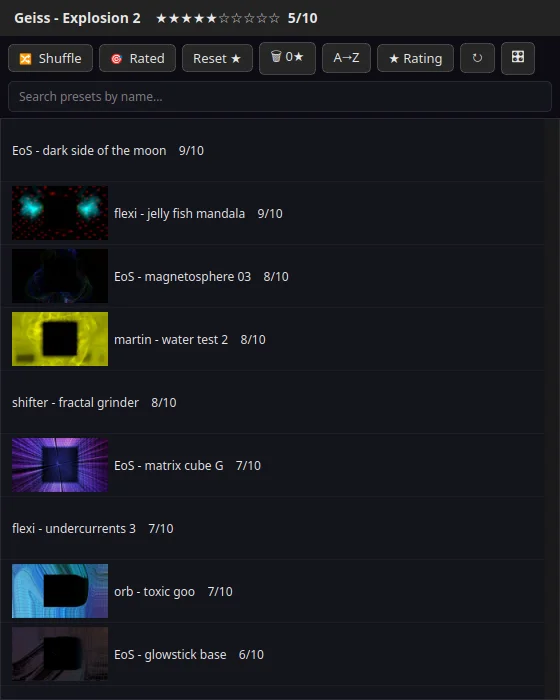
- A live browser of the whole playlist, current preset highlighted, rating beside every name. Jump to any of them.
- Lock and rate from the browser itself as well as from the keyboard — the buttons sit in the panel’s tab row, on screen while you are reading the list rather than a key you have to remember.
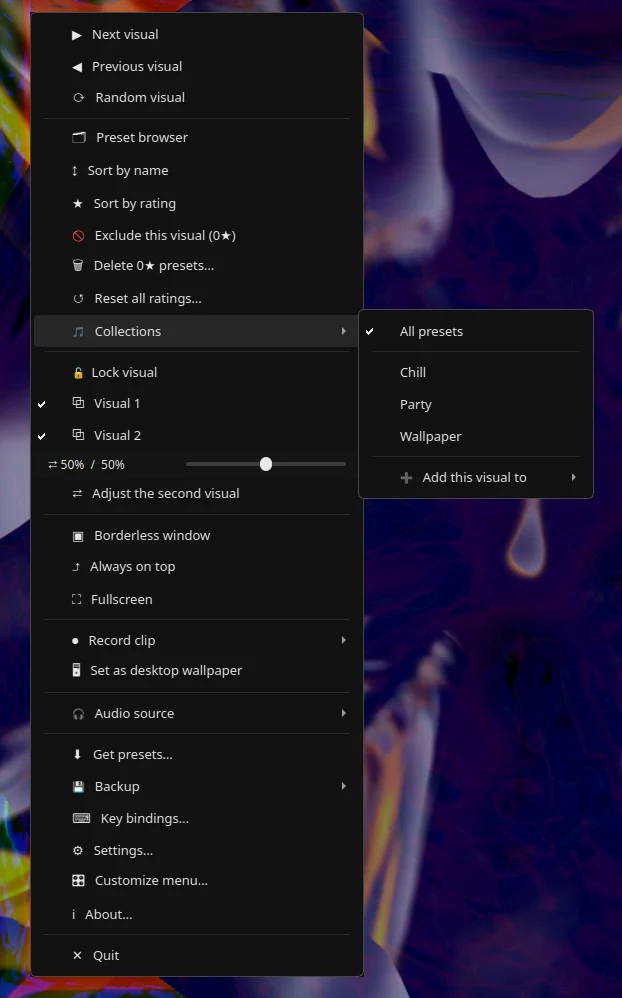
- Collections, for when a rating out of ten is not the distinction you are making. Add the one on screen to Chill or Loud or Party from the menu, then play that collection on its own — the whole rotation narrows to it.
- Back up your ratings, collections, key bindings and settings to a single zip, and restore it on another machine or after a reinstall. The one part of this that cannot be downloaded again is the part you decided yourself.
Finding one again
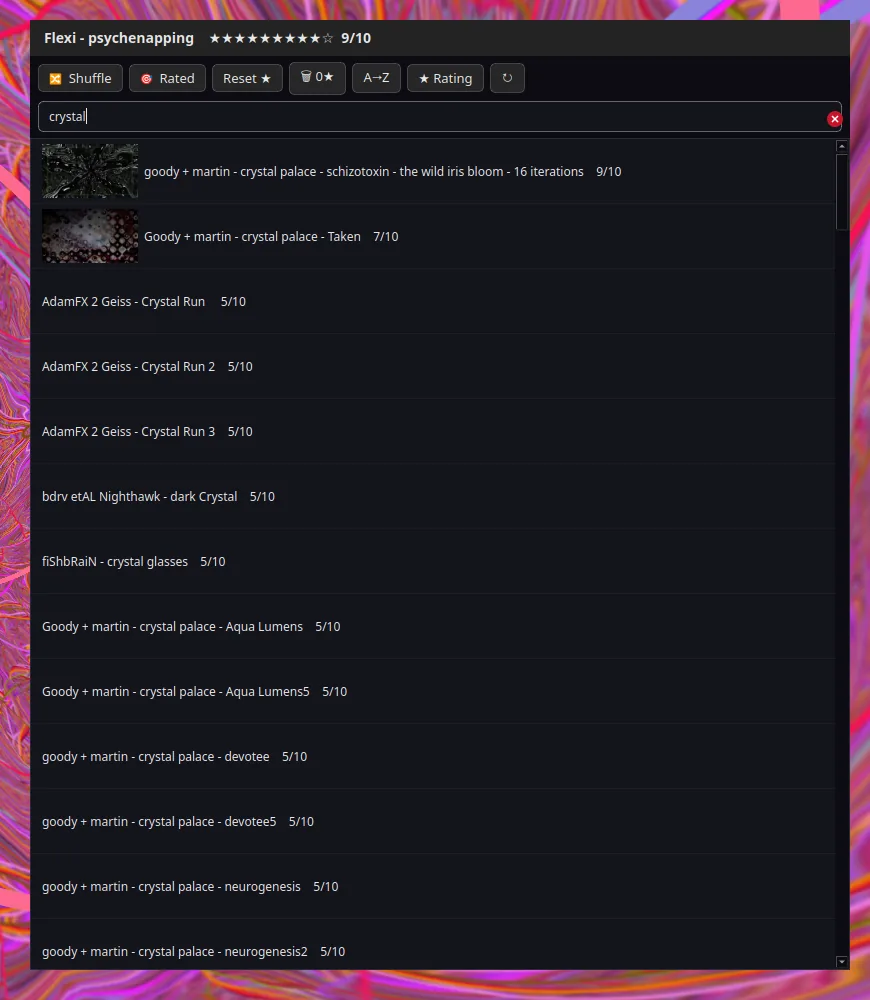
- Search by name as you type. The list narrows as you go and the title says how many matched; sorting, rating and shuffle all keep working on what is left.
- Presets you watch for more than a few seconds grow their own thumbnail, taken from the frame that was actually on screen, and it appears beside the name from then on.
- One key replaces that thumbnail with the frame in front of you, whenever you like. A preset that settles into something better a minute in gets the picture it deserves rather than the one it opened with.
- Thumbnails can be switched off from the browser toolbar, which turns the list back into plain names — faster to read, and the only sensible view on a library of tens of thousands.
- There is no batch render over the whole folder, on purpose: ten thousand presets at a second each is two hours, and the pictures worth having are of the presets you sat through. A fresh install has none and fills in as you use it.
- Lock a preset when the rotation lands on one you want to keep.
The render
- projectM 4 — the open implementation of MilkDrop — with frame rate a setting, up to 240.
- Quality and mesh resolution are settings too, not a compile flag, so it scales from a spare laptop to a card that can chew through it.
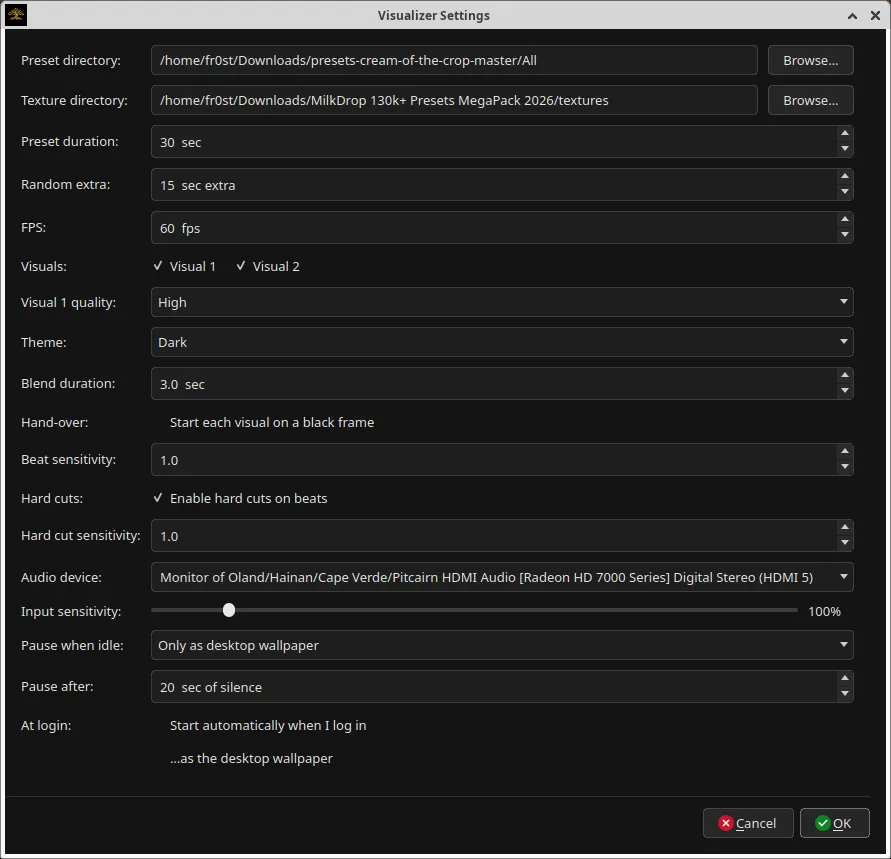
- Beat sensitivity, hard cuts on beats with their own sensitivity, and a soft blend duration for the transitions between presets.
- Preset duration plus a random extra, so the cadence never turns into a metronome.
Two visuals, and a fader between them
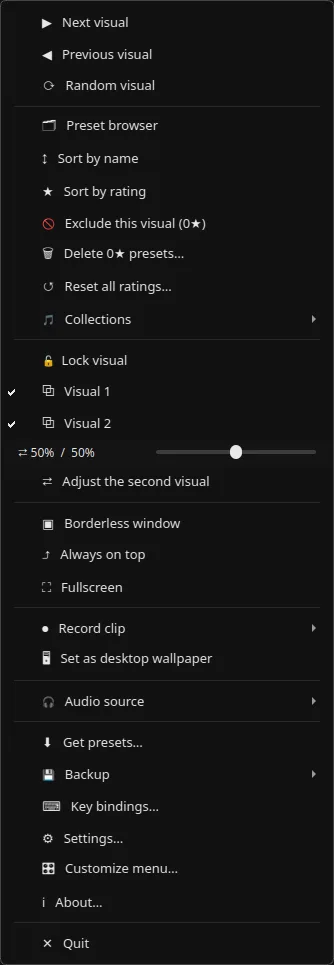
- A switch for each of the two visuals in the right-click menu. Both on and you are watching two authors’ work at the same time, both reacting to the same music, both still advancing — never the same combination twice.
- A crossfader under the switches runs from the first preset alone, through the two of them mixed, to the second alone. Drag it and the picture changes while you watch; “[” and “]” move it a step at a time.
- They are screened together rather than faded through black, which is why the middle reads as one picture with more going on in it instead of two pictures fighting.
- A visual the fader has taken all the way out is not drawn at all, so parking it at one end costs no more than running one visual does.
- One of the two is always on — both off is a black window — so whichever is left on its own greys out rather than switching off.
- Tab swaps which of the two everything else is pointing at: the browser, the ratings, the sliders, the next-preset key. The menu says which one you are adjusting, so the other never looks broken.
- Each carries its own quality setting, and the second starts on Low, because the pair costs about twice what one of them does. The Quality row in Settings follows whichever visual you have ticked.
- Off by default, and it stays however you left it.
A screen each
- With more than one monitor, Send visual to gives either visual a screen of its own instead of the two sharing a window. One preset on each display, both reacting to the same music, both still yours to rate and edit.
- The fader stops mixing when they are apart — there is nothing left to mix — and each monitor shows its own visual whole.
- The picture is letterboxed rather than stretched, so it keeps the shape of the main window on a monitor that is a different shape. Make that window fullscreen and the bars go.
- Send them both to the same screen and you are back to the pair, blended, in one window.
- Where you sent it is remembered, so the second visual comes back on its own monitor next time you open the app.
Presets and textures
- Point it at any folder of MilkDrop presets. Packs arrive as nested folders and it reads them recursively, so a pack works the moment it lands — no flattening ten thousand files into one directory first.
- Get presets downloads a curated pack from the public repository it comes from, unpacks it and points the app at it. One button on a fresh install.
- Full MilkDrop 2 texture support. Presets that sample texture files are the best-looking ones there are, and they are exactly the ones that fall back to a plain waveform in players that cannot find the textures. Point it at a texture folder as well and they render the way their authors meant.
- Textures that move. MilkDrop reads seven still picture formats and nothing else; this hands the renderer the frames itself, so a GIF, a WebP, an animated TIFF or an MP4 can stand in for any texture a preset samples and the preset warps it live, frame after frame.
- Neither presets nor textures are bundled. They are the work of hundreds of artists who released them under their own terms, so the app fetches them from where those artists put them rather than redistributing them.
Changing one you nearly like
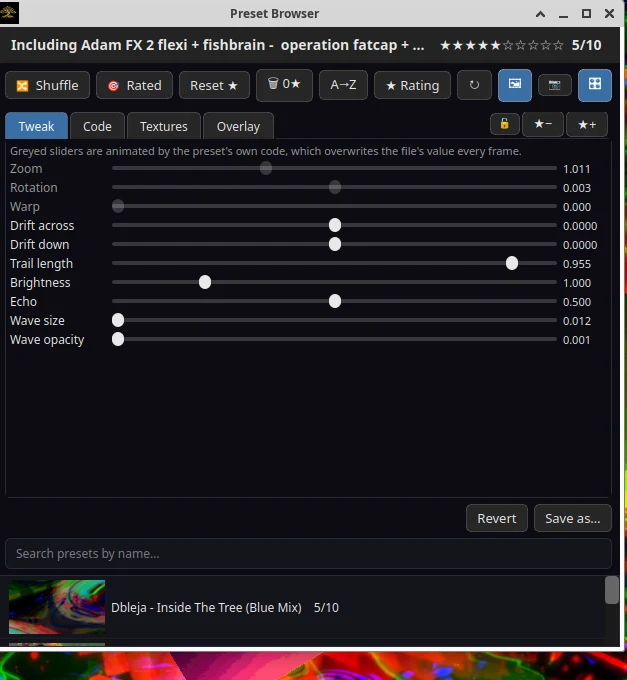
- A button in the preset browser opens a panel of sliders over the preset that is playing: zoom, rotation, warp, drift, trail length, brightness, echo, wave size and opacity. Drag one and the picture changes as you drag.
- Nothing is written to your preset file. The edit is handed straight to the renderer, so the original on disk is untouched — Revert puts it back, and Save as… writes your version beside it as a new preset under a name you choose.
- Sliders the preset animates for itself come up greyed, with a note saying so. Around half of all presets drive their own zoom frame by frame, and a slider that quietly loses every argument with the preset is worse than no slider.
- The second tab lists the picture files the preset samples. Swap any of them for a photo of your own and the preset renders through it — the same preset, made out of your holiday snap.
- Swapping never touches the texture pack. Your picture goes in its own folder that the app looks in first, so Restore is one click and the artists’ files are exactly as they were.
Its own code, open on the desk
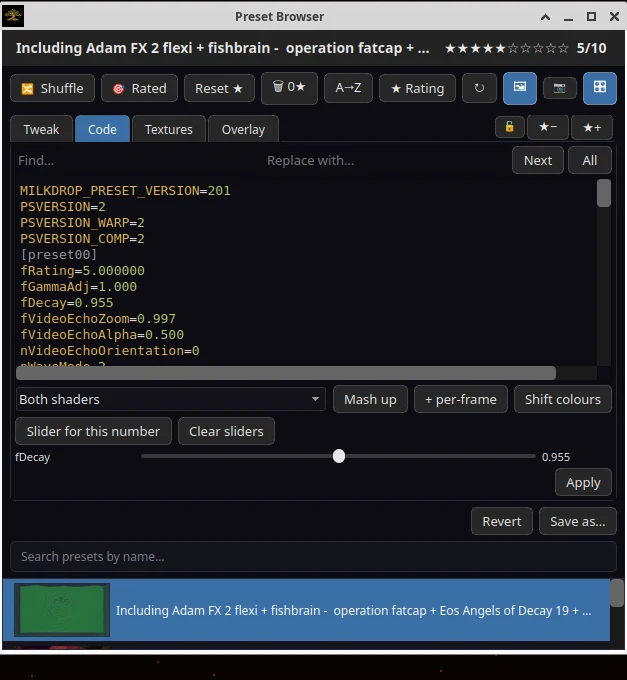
- The third tab is the preset itself — the whole .milk file, equations and shaders, in an editor with find and replace. Apply recompiles it while it is on screen; Revert puts the file back; Save as… writes your version beside it.
- Put the cursor in any number and press one button for a slider on it. The ten named sliders are a chosen few of what a preset carries; this reaches every other one, and the constants inside the shaders, which no named list ever could.
- Mash up takes a share of another preset at random — waves, shapes, the warp, the whole shader — and grafts it on. Press it again for a different one. It is the fastest way to something nobody has seen.
- Shift colours turns every colour in the preset the same way round the hue wheel, and + per-frame adds the next free per-frame line in the right place so you can type an equation without counting.
- Anything that will not compile says so under the editor, quoting the line the compiler objected to, instead of dropping you to a blank screen with no idea why.
Your own picture over it
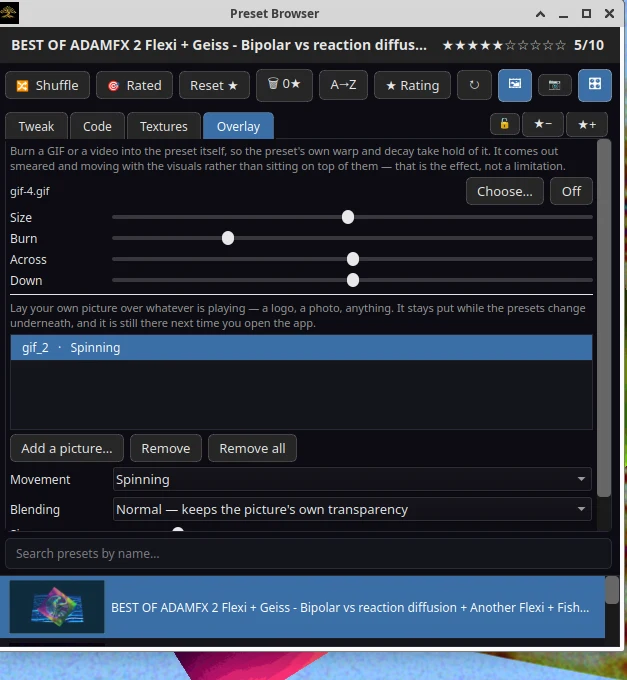
- Pick a picture — a logo, a photograph, a drawing — and it sits over the visuals. The presets keep changing underneath and it stays where you put it, still there the next time you open the app.
- Choose how it moves: still, spinning, drifting slowly around the frame, pulsing to the beat, or spinning and pulsing at once. Set its size and how solid it is with two sliders.
- Three ways of blending it in. Normal keeps a cut-out PNG’s own transparency; additive makes the dark parts vanish and the bright parts glow through the render; solid draws the whole rectangle.
- Up to sixteen at once, so a logo in the corner and a photograph in the middle are both fine. Add and remove them from the same panel, and the pictures live in the app’s own folder rather than anywhere near your preset pack.
- The picture can move. Drop in a GIF, a WebP or a video and it plays over the visuals, spinning or pulsing to the beat like any other overlay — an animated logo, a looping clip, whatever you have.
- Or burn it in instead of laying it on. Burnt in, the preset’s own warp and decay take hold of the picture: it smears, echoes and travels with the visuals rather than sitting on top of them, with its own size and how deep it goes.
Recording a clip
- One key starts recording what is on screen and another stops it. MP4 for a video, GIF for something to post.
- Clips carry the sound that drove them. The music is captured straight off the same system output the visuals are reacting to, and muxed onto the video, so what you post has the track under it.
- Clips land in a folder the right-click menu will open for you.
- Recording needs ffmpeg. On Windows a copy ships with the app, so there is nothing to install; on Linux it comes from your package manager, or you can drop the binary beside the application.
On the desktop
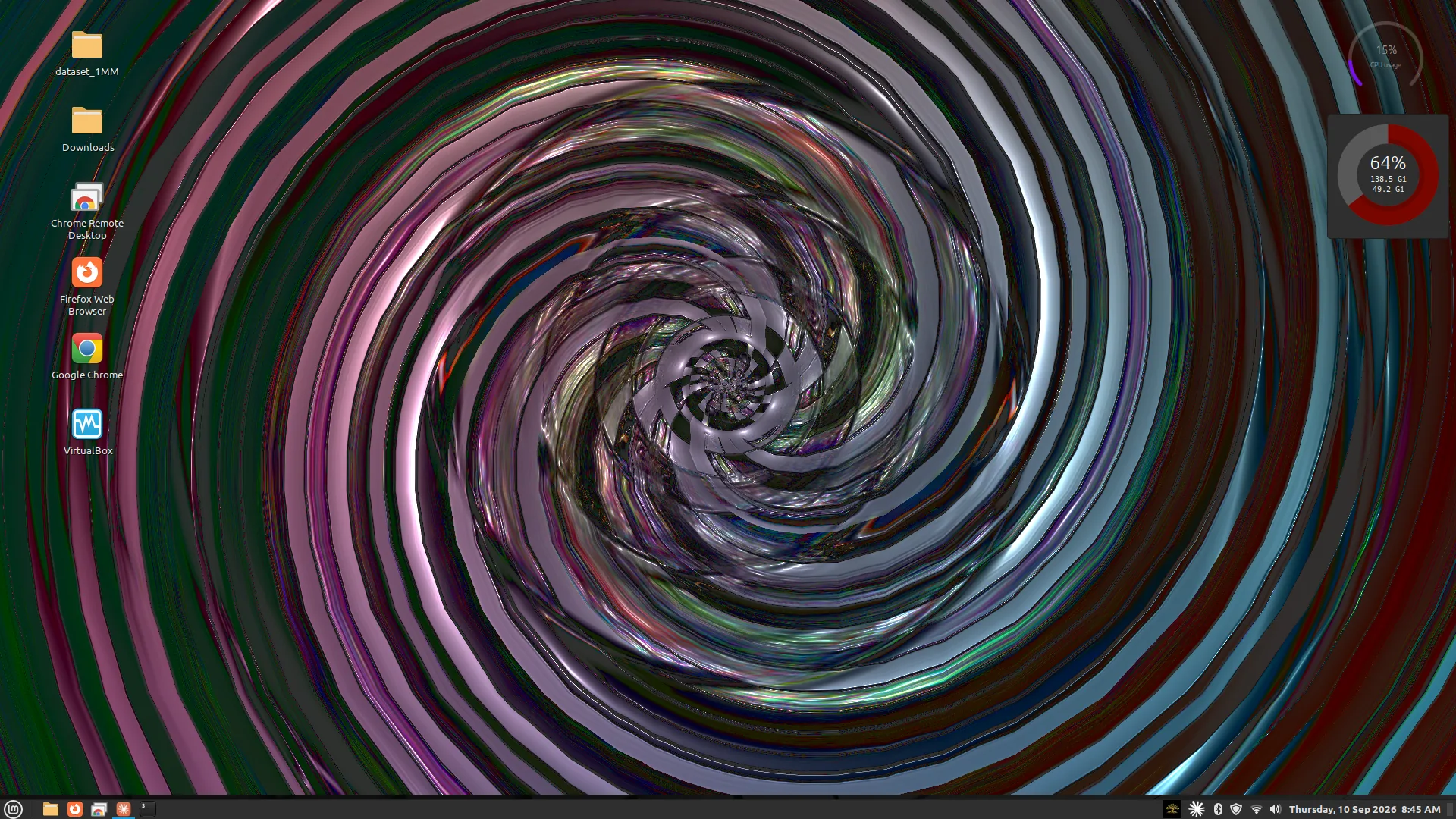
- Wallpaper mode draws the visuals on the desktop, behind your icons, still reacting to whatever is playing. Windows hands desktop input to Explorer, so a tray icon carries the menu instead. It works on Linux too, on an Xorg session — Cinnamon puts it behind the icons, and so does any desktop that draws its icons in a window of their own; Xfce draws its icons on the wallpaper itself, so they are hidden while it runs unless you turn desktop icons off. Wayland cannot do it at all, and the app says so instead of failing quietly.
- On Windows it doubles as a screen saver, wired up by the installer if you tick the box. Any key or a real mouse movement ends it, and small movements are ignored so a resting mouse does not wake it.
- A wallpaper that pauses itself. After a set stretch of silence it stops drawing, and it stops the moment a game or a film goes full screen — no GPU spent on a picture nobody can see. Sound comes back, so does the wallpaper, on the preset it left off.
- Start it at login, as a window or straight into wallpaper mode, from a checkbox in the settings.
- With more than one monitor, the wallpaper covers the whole desktop or just the screen you pick — and picking one while it is already running moves it there rather than starting again. The tray menu carries the same list, so you can move it without leaving the mode. Which screen the wallpaper covers and which screen fullscreen uses are separate settings; answering one no longer moves the other.
- Fullscreen on a key or a double-click, and a key for borderless.
Made to be lived with
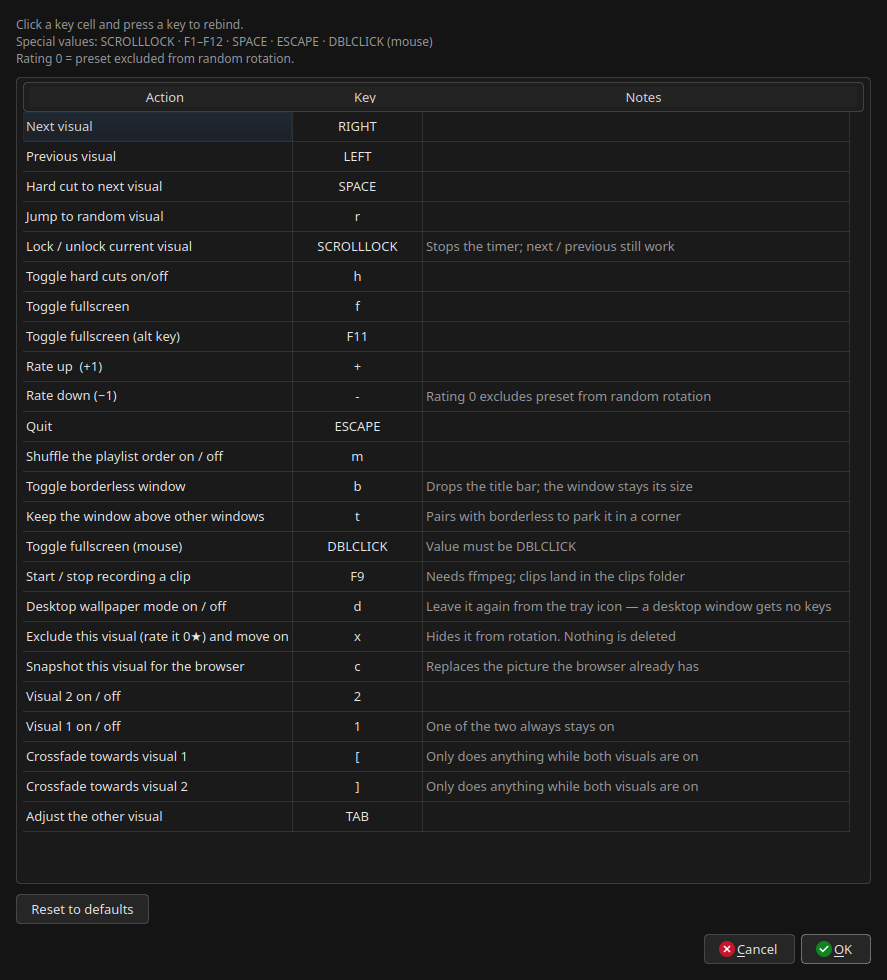
- Every key is rebindable.
- Dark and light themes, or follow the system — through the freedesktop portal on Linux, the app-theme setting on Windows.
- An audio device picker for choosing which output it listens to, and an input sensitivity slider for material quieter or louder than the visuals expect. A live level meter sits in the menu beside it, so setting that slider is a matter of watching the bar rather than guessing.
- No account, no sign-in, no licence server, no update check, no telemetry and no crash reporting. Ratings and settings are files on your own disk.
- Command-line flags for geometry, borderless start, preset directory and skipping audio capture. That last one matters: it means the window can be handed to another program that is already capturing the audio, and just draw — which is exactly how it lives inside BomsAI Studio.
Screenshots
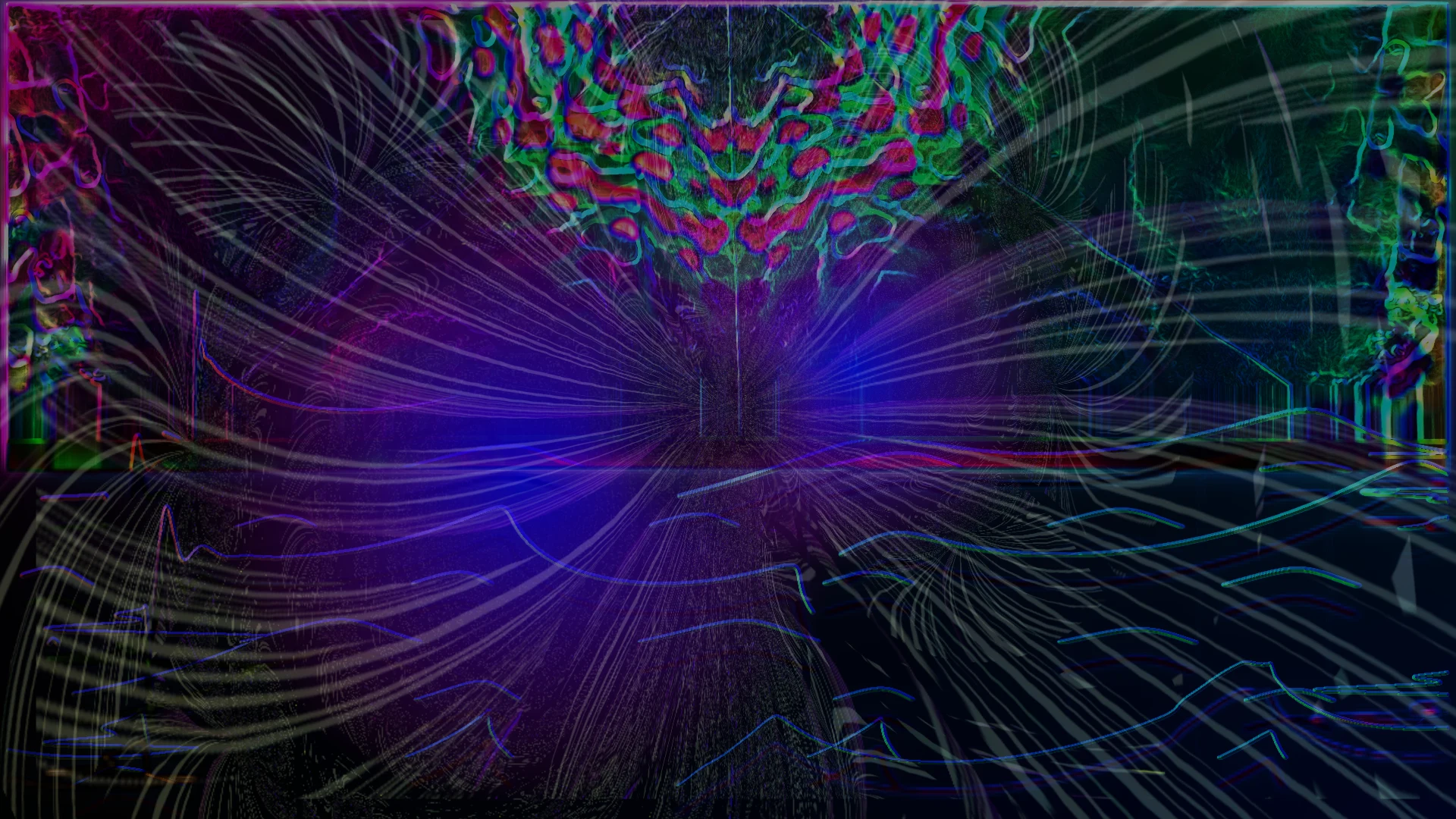
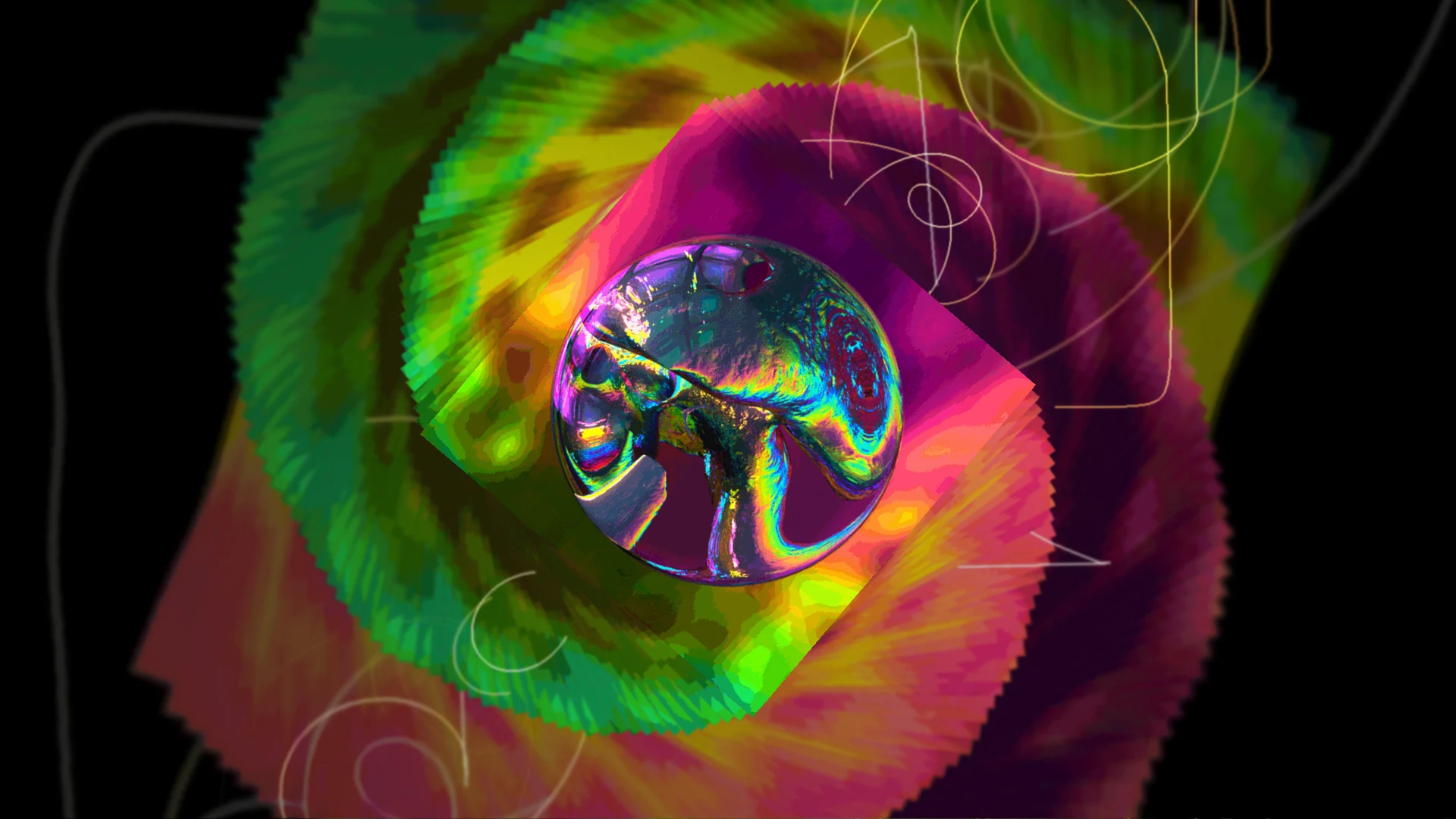
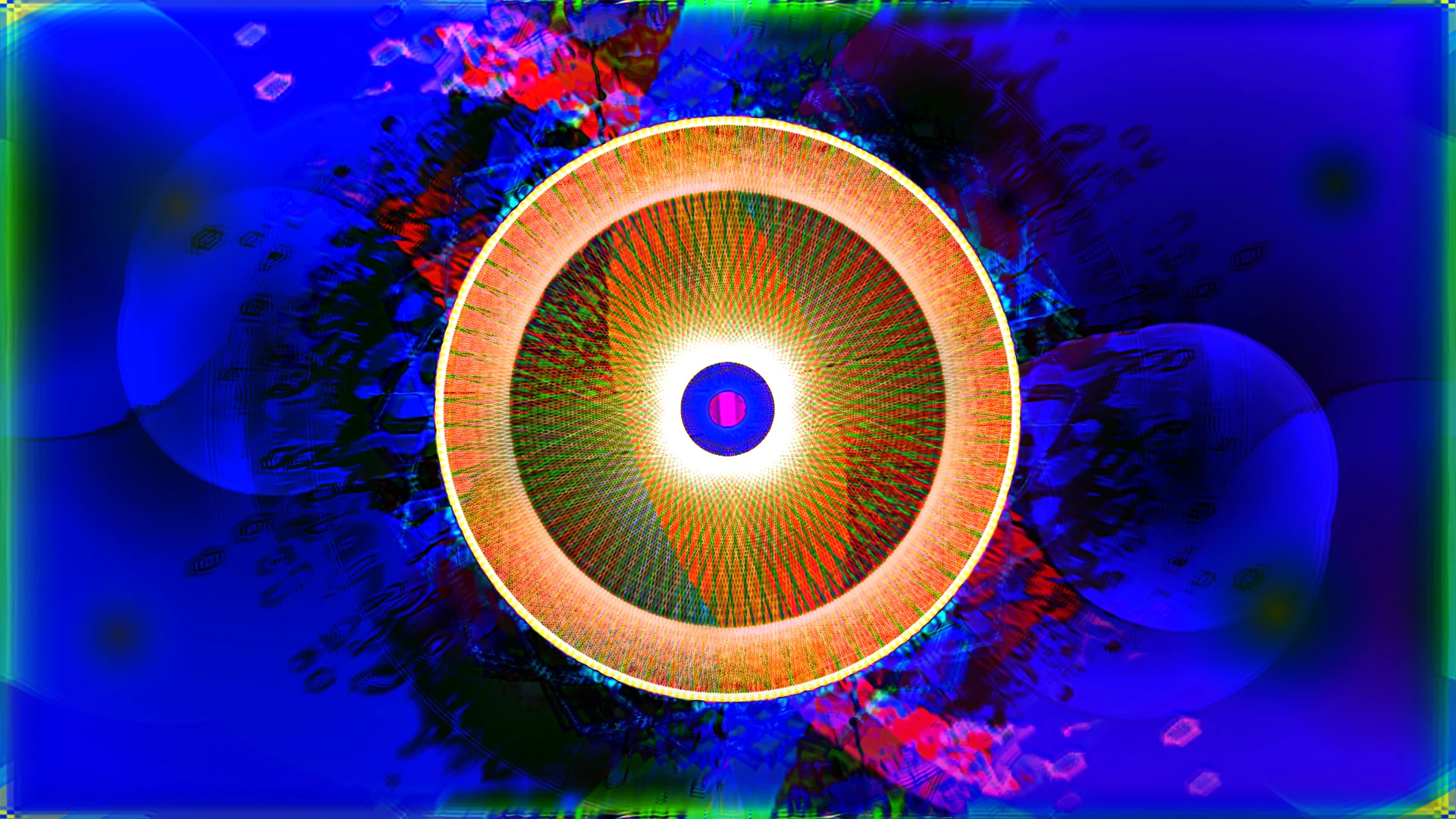
The same app on both platforms, Linux on the left. Click any shot to open it full size.
 Linux
Linux 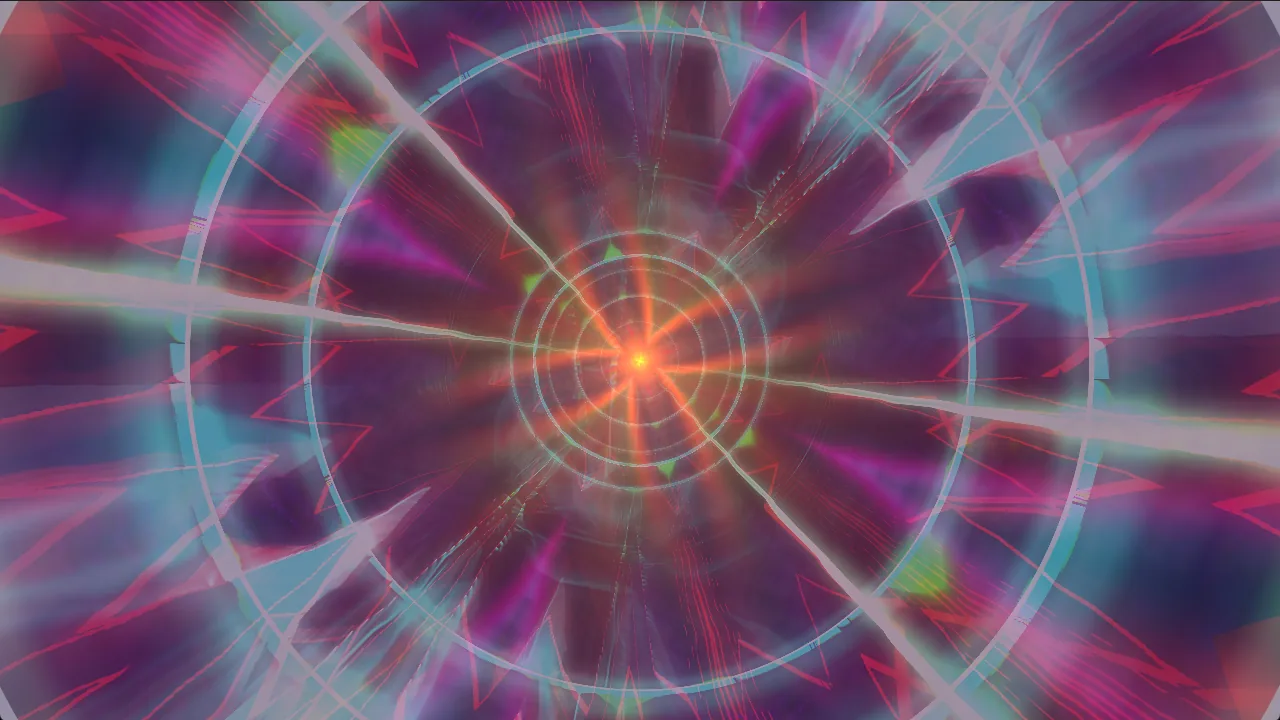 Windows
  Linux
Linux 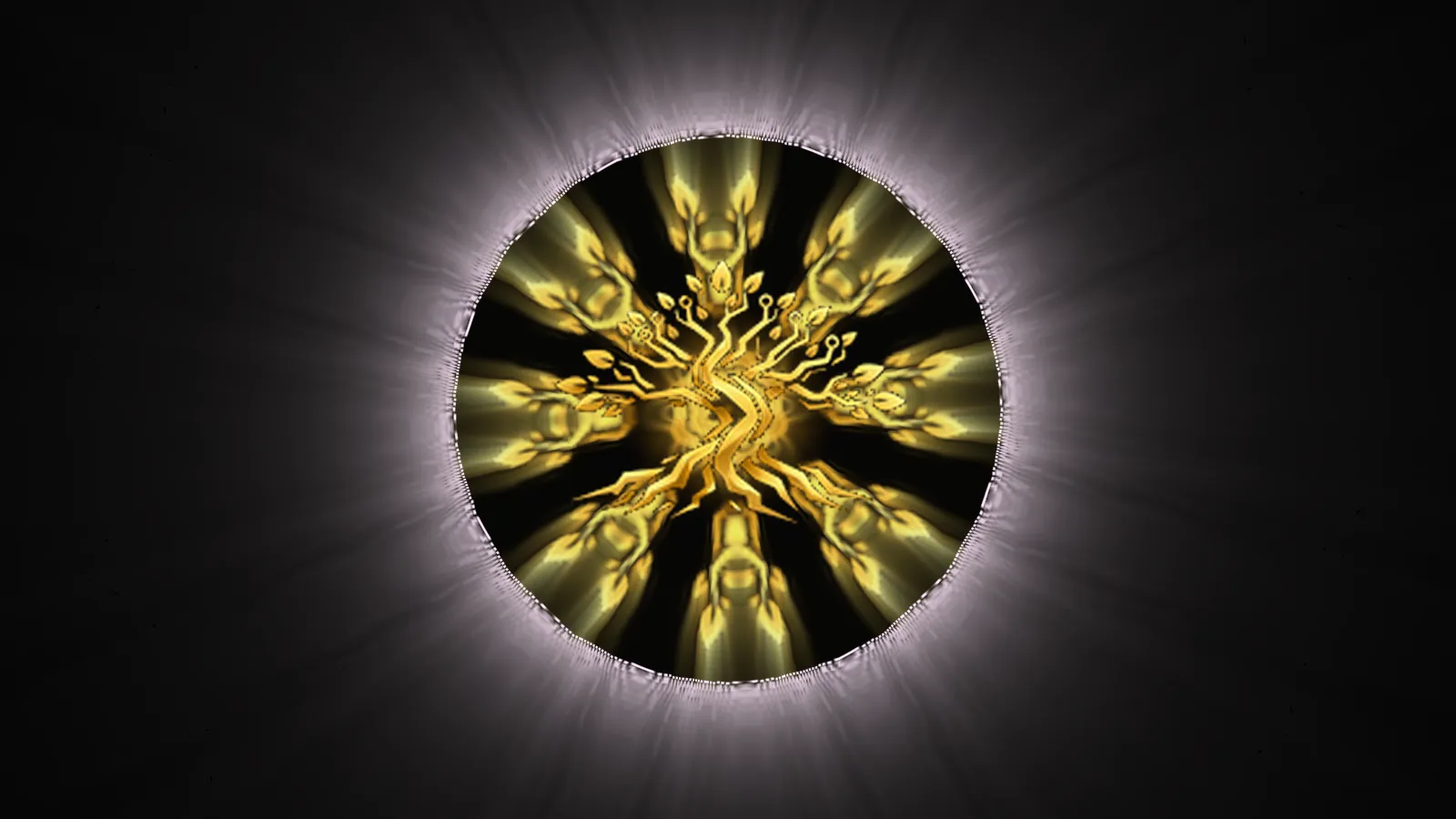 Windows
  Linux
Linux 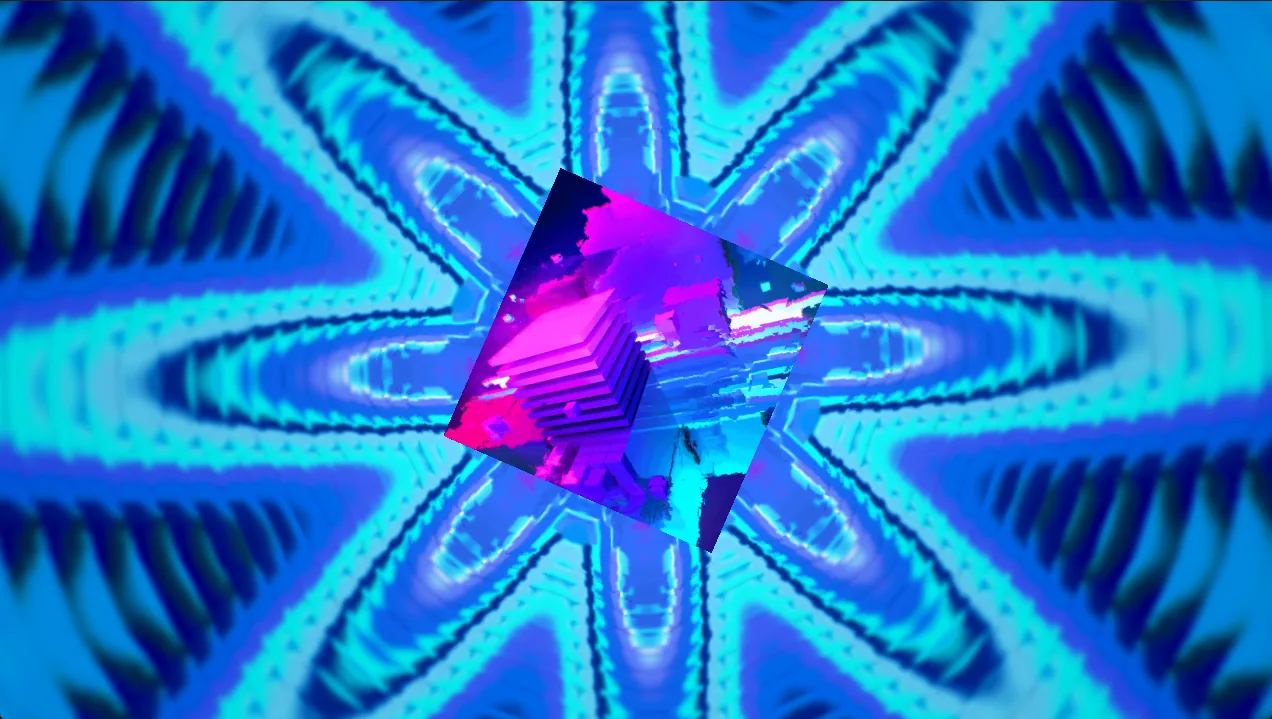 Windows
  Linux
Linux 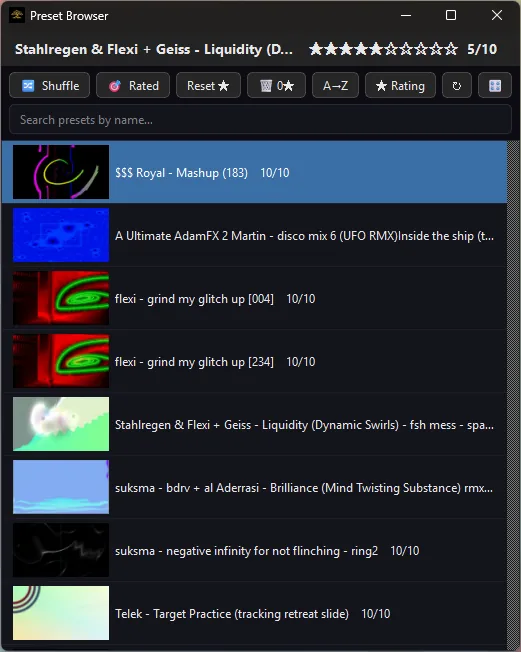 Windows
  Linux
Linux 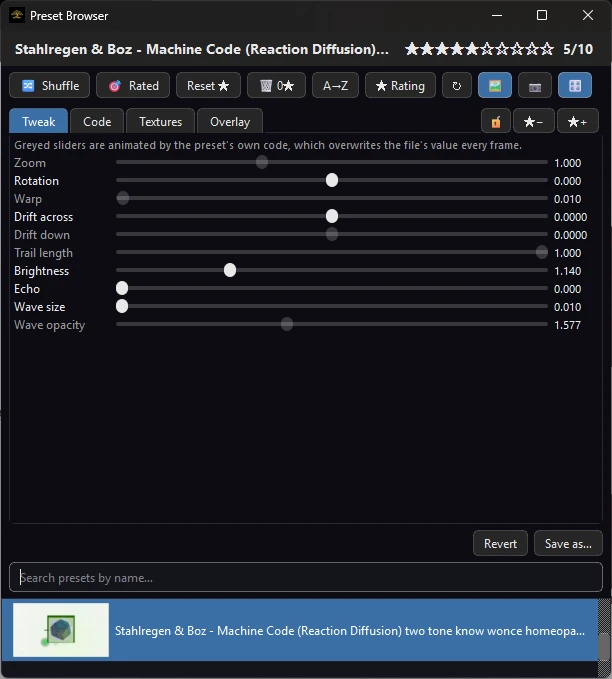 Windows
  Linux
Linux 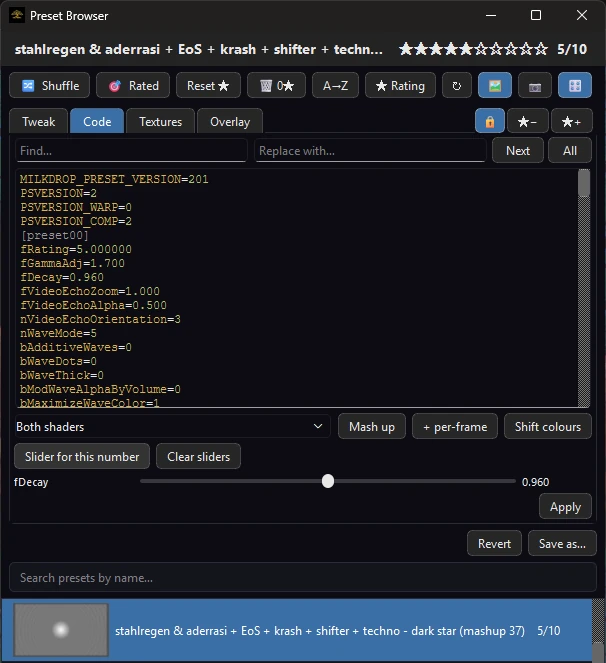 Windows
  Linux
Linux 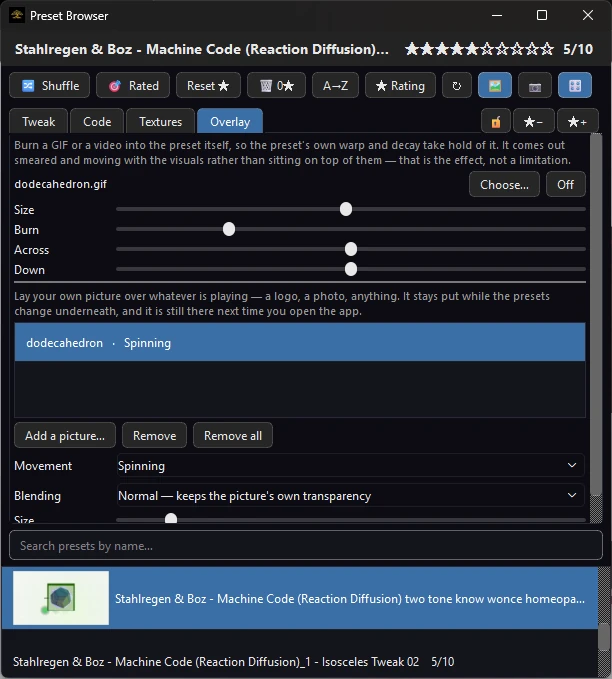 Windows
  Linux
Linux 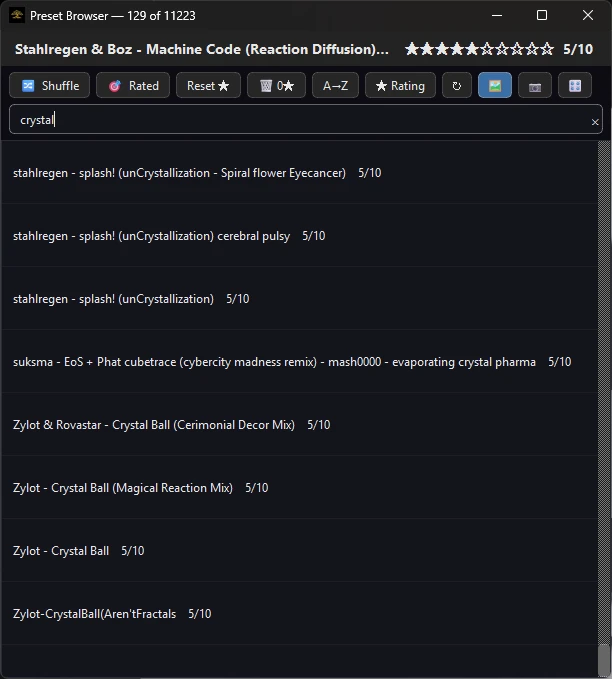 Windows
  Linux
Linux 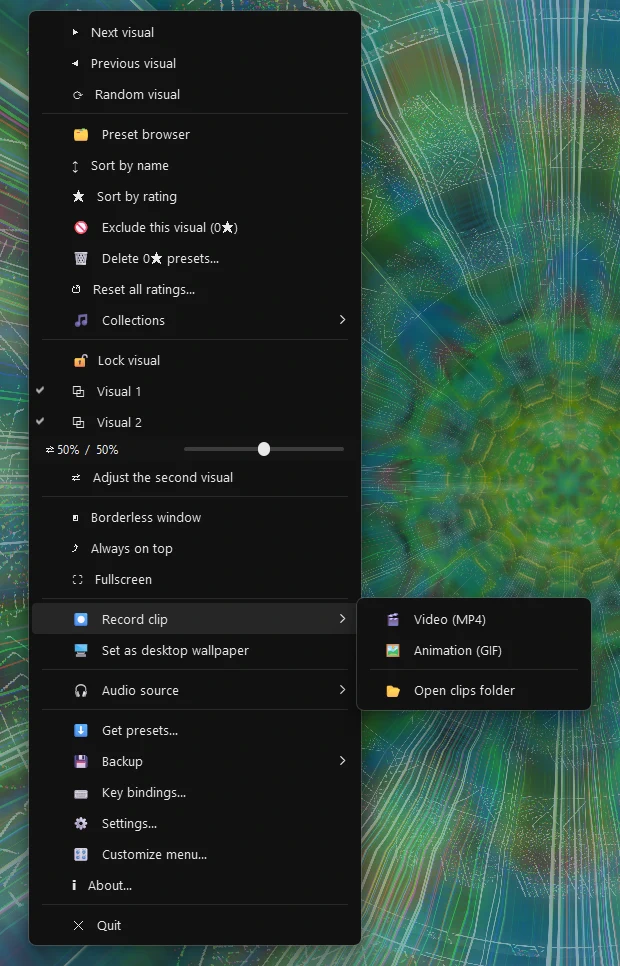 Windows
  Linux
Linux 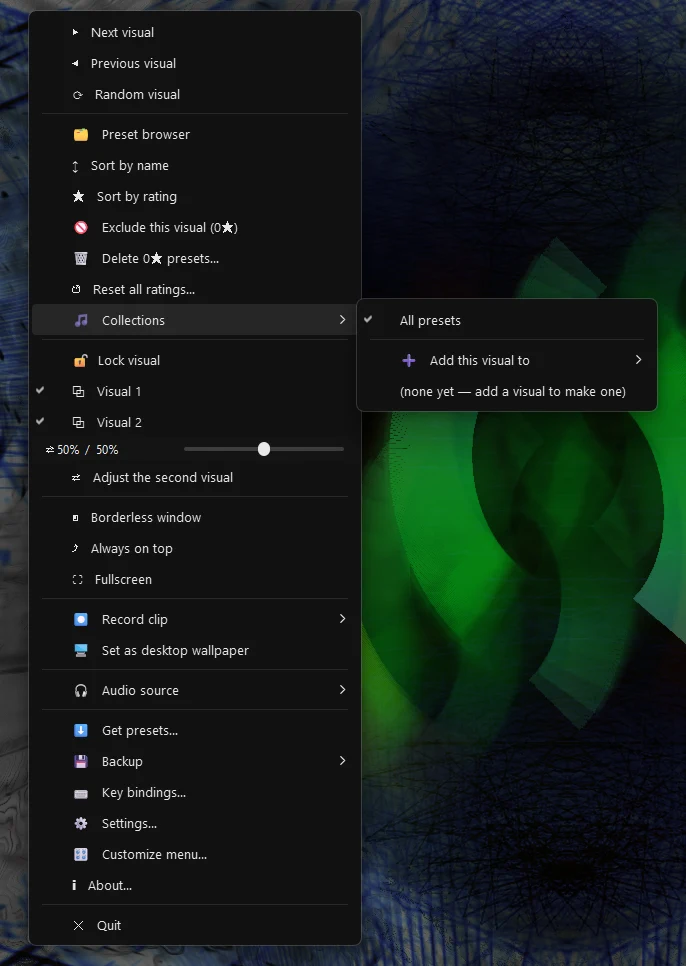 Windows
  Linux
Linux 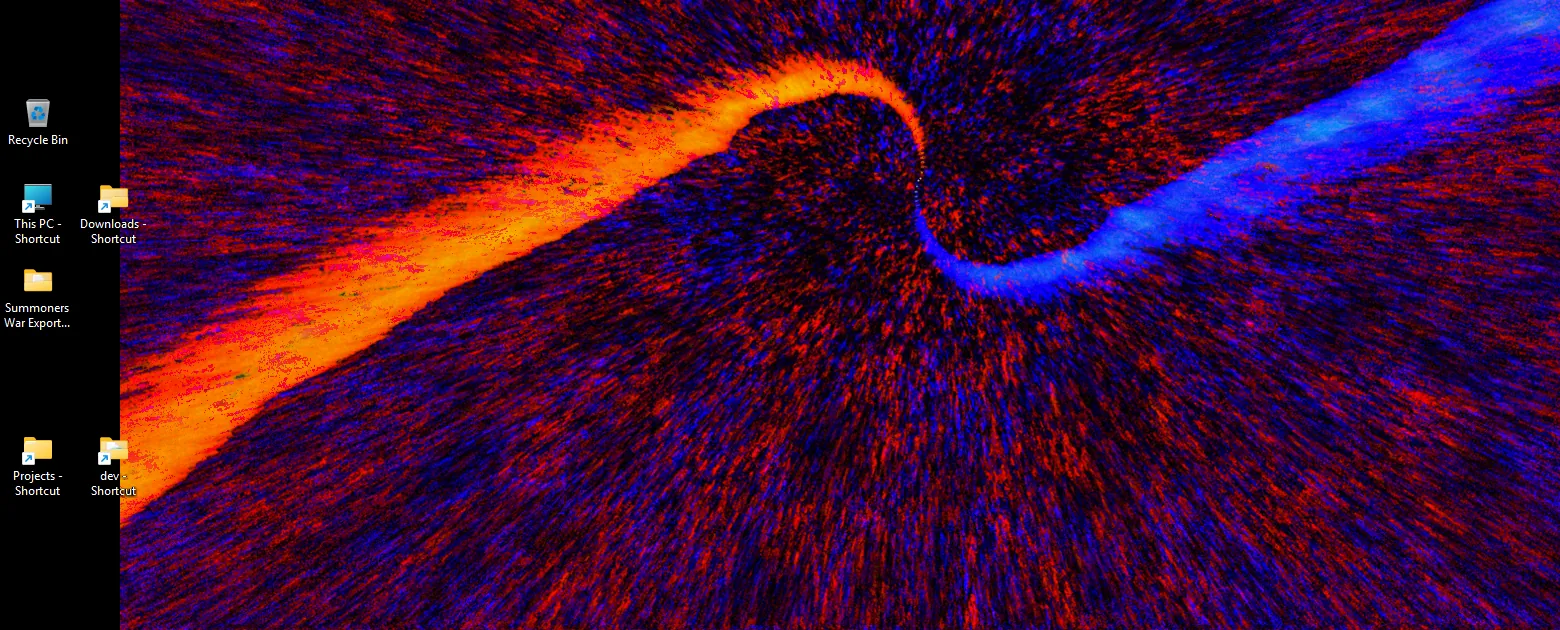 Windows
  Linux
Linux 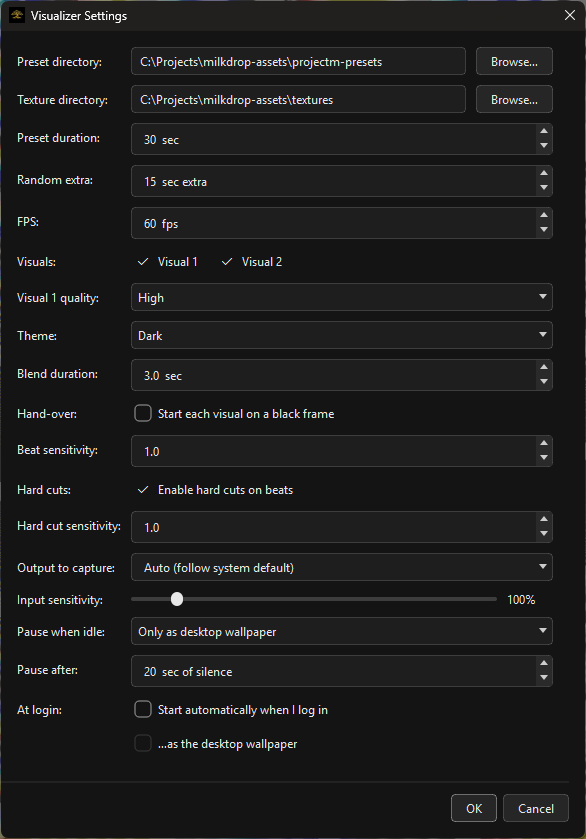 Windows
  Linux
Linux 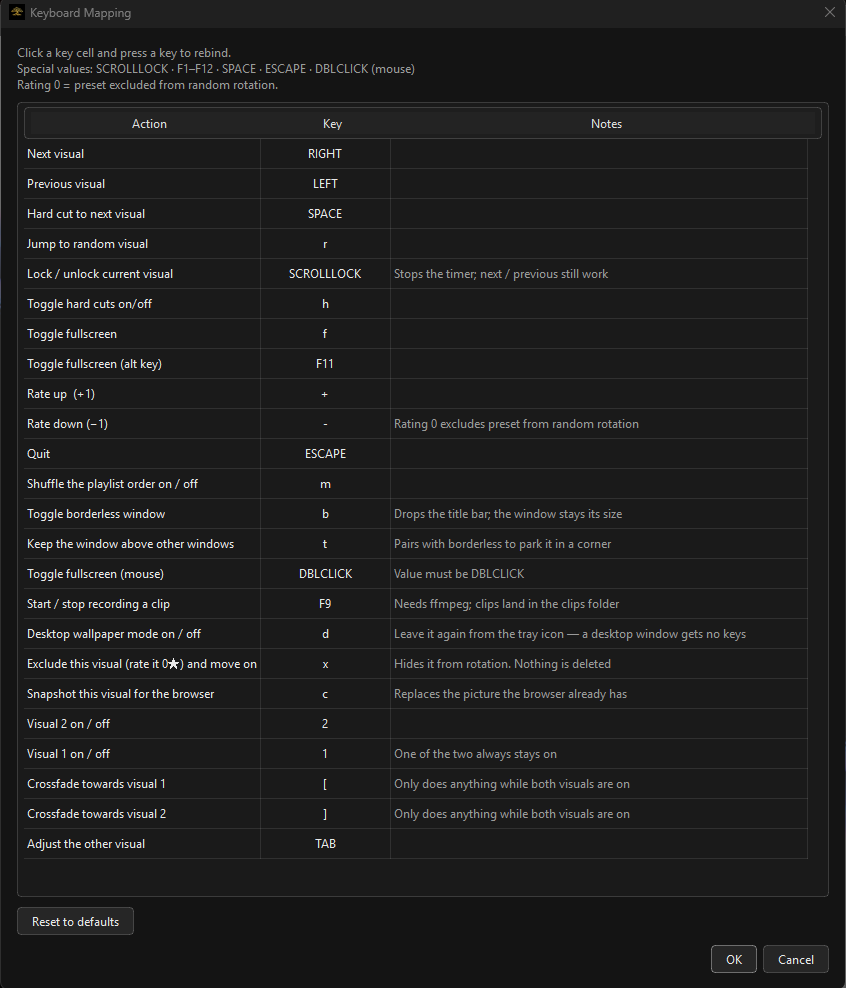 Windows
  Linux
Linux 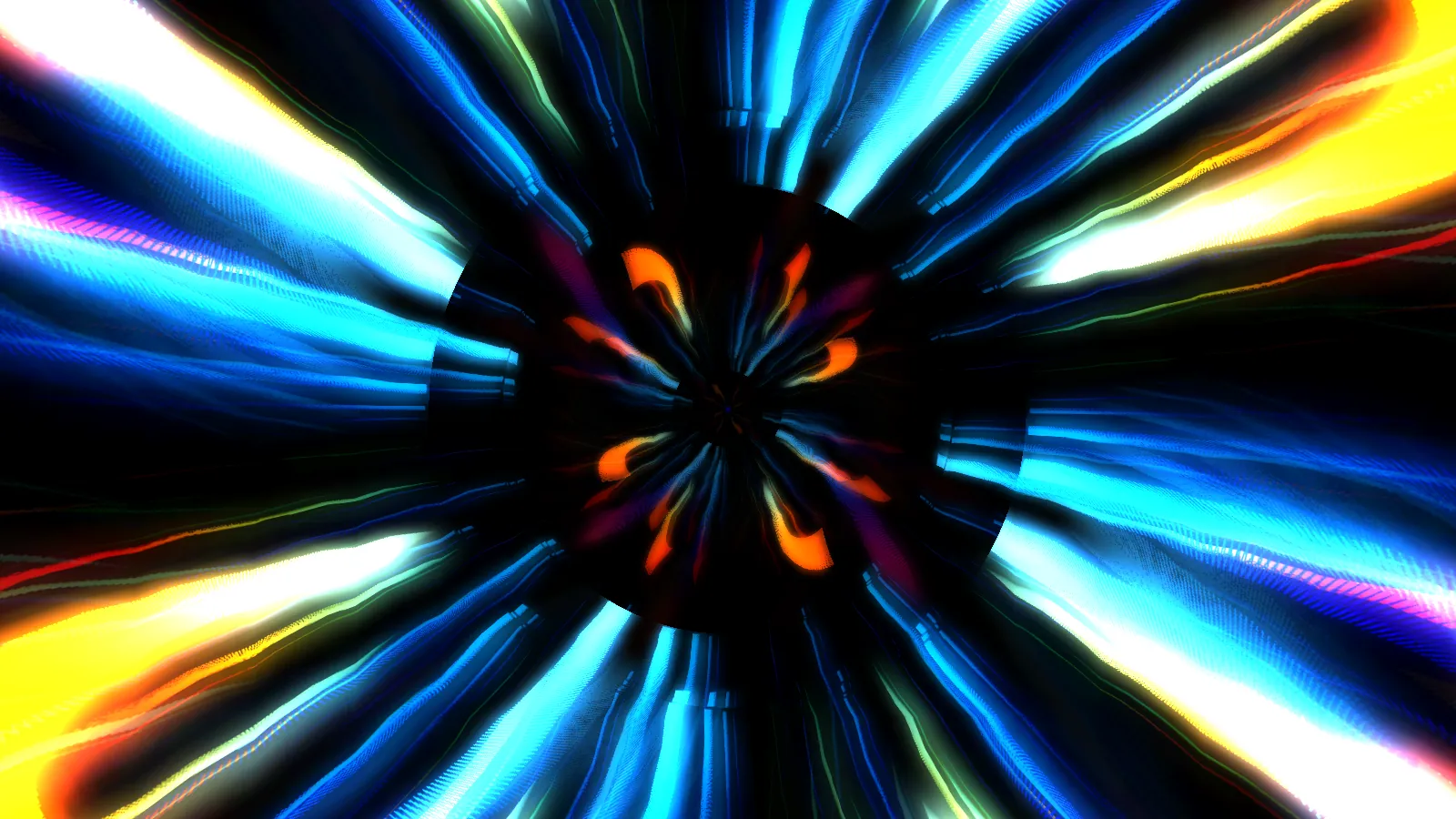 Windows
 Getting hold of it
Finished and in final testing. It goes on sale at $5, on the Microsoft Store first, with a direct download here for Windows and Linux alongside it. Want a heads-up when it lands? Say so on the contact page.